Driver key configuration and Mhub 369B wiring instruction
Below are the steps to configure your device to use Input 1 has a source of ignition :
How to set input 1 as a source of ignition [for Trip start ]:
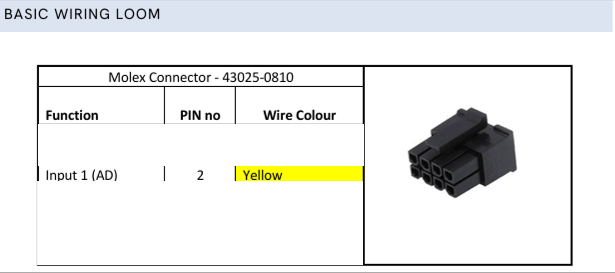
1.Ensure that you have set the following setting on your device configuration ( you can search for the below Categories with the below tags):
*** Input A Function [0 to 64 ] set to "4"--This allows input 1 to be used as the source of ignition when it is connected to the ignition line.
*** Ignition source : ignition line set to "1"
*** Trip source ignition line set to "1"
*** Ignition source :alternate " set to "1" "
[ensure to turn off other source of ignition that is not required]
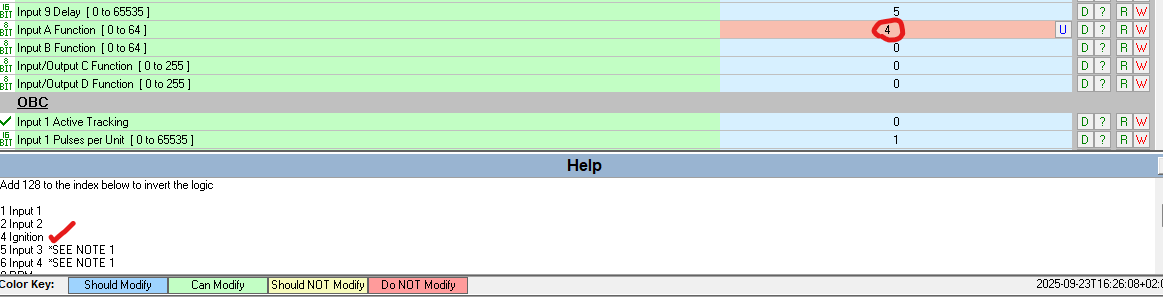



Steps to follow when configuring your Mhub 369 B to enable Driver ID with the immobilizer, and turn the buzzer (Can be connected to output 2 Blue wire ) when a driver tags and their key is authenticated
1.Ensure that you have set the following setting on your device configuration ( you can search for the below Categories with the below tags):
*** Input A Function [0 to 64 ] set to "4"--This allows input 1 to be used as the source of ignition when it is connected to the ignition line.
*** Ignition source : ignition line set to "1"
*** Trip source ignition line set to "1"
*** Ignition source :alternate " set to "1" "
[ensure to turn off other source of ignition that is not required]
Steps to follow when configuring your Mhub 369 B to enable Driver ID with the immobilizer, and turn the buzzer (Can be connected to output 2 Blue wire ) when a driver tags and their key is authenticated
1.First,
you must have a valid driver tag that has been initialized with a
programmer and assigned a valid driver identity.
Use one of the following key parameter fields — for example: Custom Driver ID, Customer
Code, Fleet Code — to configure the driver tag so it can start a trip
(see Image below).
2.Configuring your Mhub 369B/F to acknowledge the information programmed when tagging a driver key in the driver key socket.
Wiring of the driver key socket to the MHUb 369B :
1. Ground wire (Black cable) of the MHub 369 connects to the Ground wire of the Driver Key Socket (Black cable).
2. 1-Wire (Purple) of the MHub connects to the positive to the Driver Key Socket (Red cable).
3. Power wire of the Mhub 369 connects to power (Red cable).
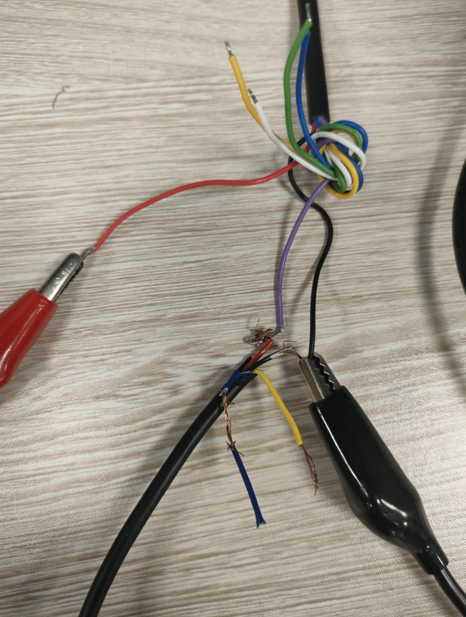
4.Ensure that the below setting is applied to your device (see Image B).
Set the following parameters to “1” (enabled):
1. Ground wire (Black cable) of the MHub 369 connects to the Ground wire of the Driver Key Socket (Black cable).
2. 1-Wire (Purple) of the MHub connects to the positive to the Driver Key Socket (Red cable).
3. Power wire of the Mhub 369 connects to power (Red cable).
4.Ensure that the below setting is applied to your device (see Image B).
Set the following parameters to “1” (enabled):

Enable Valid Driver Check :
Enable Driver Key :
Verify Driver ID :
Driver ID :
Related Articles
Mhub Diagnostic Utility Manual.
Kindly see attached, Mhub Diagnostic Utility Manual PDF Table of Contents: Introduction ................................................................................................................... 5 1. Getting Started ...MHub 369 - Device information
Online Diagnostic https://mojo.r7d.xyz/MHubDiagnostic.html Files attached in this article Manuals: MHub369 Quick Installation Manual V01 MHub369 Technical V01 Firmware: 2025-01-06_102112_MHub369-6-40-V1R2B-RLS_CANDIDATE_9Testing Driver key on the bench
Once you have confirmed that you have configured your device and the driver key to immobilize a vehicle, the next test is to confirm that the driver key is registered. After registering the driver key, you need to ensure that the information required ...Scope Mhub Diagnostic Utility Remote Connection.
Scope Mhub Diagnostic Utility Training. Content: 1.1) Opening Mhub Diagnostic Utility application..... 1.2) Device Selection.... 1.3) Remote connection settings.... 1.4) Establish connection to the device..... 1.5) View read the configuration of the ...MHub369F / B Installation Manual
NOTE Indicates important information to note during the installation process. Indicates potential for possible injury due to unsafe execution of procedures, possible damage to the vehicle or possible damage to the MHub369. Indicates critical ...